The World's #1 Selling C# .NET Spreadsheet With Over 500 Excel Functions
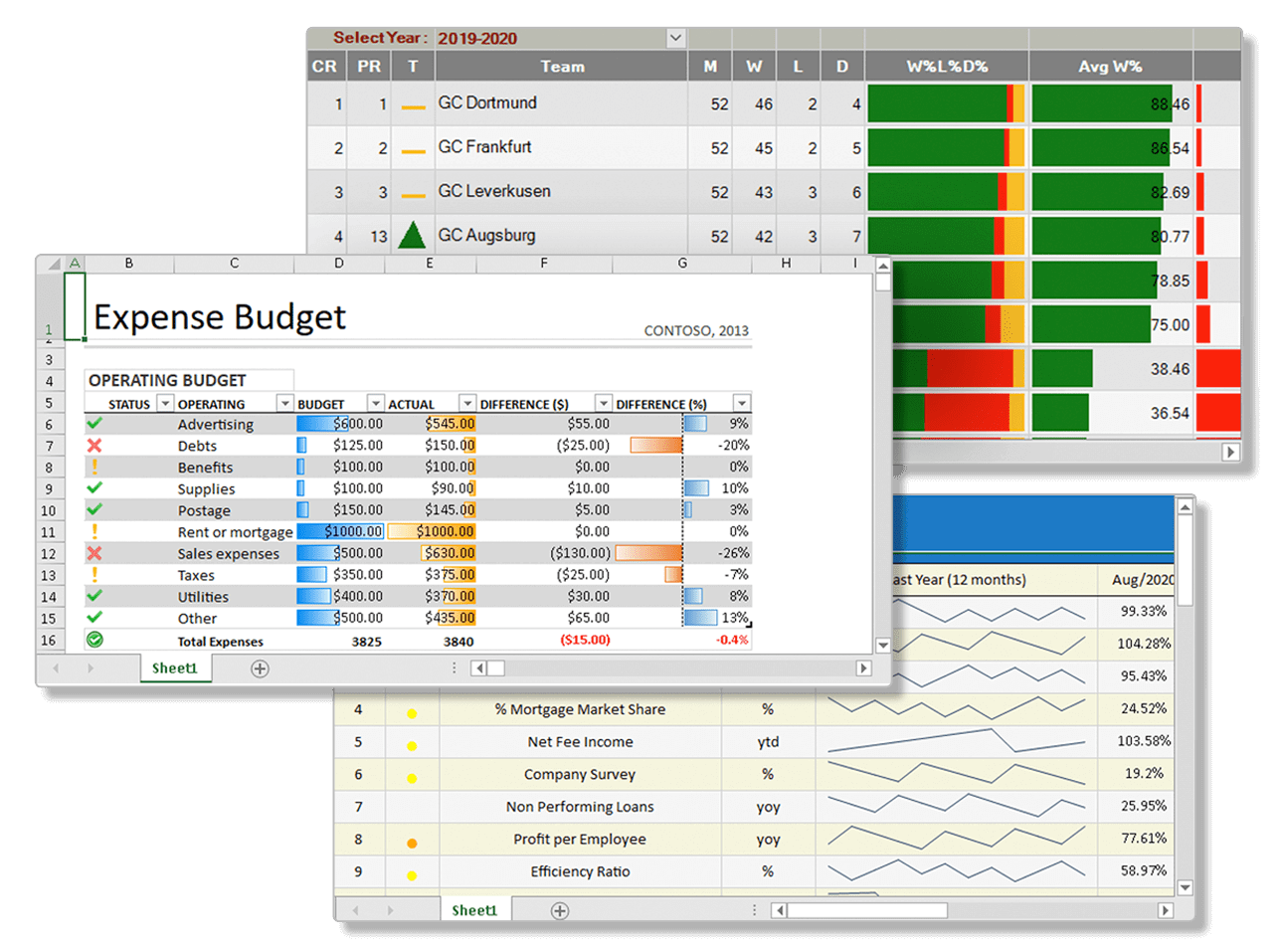
Deliver true Excel-like spreadsheet experiences in C# .NET with zero dependencies on Excel. Create financial, budgeting/forecasting, scientific, engineering, healthcare, insurance, educational, manufacturing and many other similar business applications.
Create enterprise spreadsheets, advanced grids, dashboards, reports, and data input forms with the comprehensive API
Deliver Excel-like spreadsheet experiences, fast
Leverage the powerful, high-speed calculation engine for your most complex calculations
Import and export Excel spreadsheets
Develop in Visual Studio using VB or C# for WinForms , ASP.NET, and WPF. Supports .NET 8+.
Not sure which products are right for you?
Use our decision tree to find the perfect MESCIUS product for your needs. Answer a few quick questions, and our sales team will follow up with you to guide you through the next steps! Click the button below to open a short questionnaire (hosted on Typeform).
Looking for a Server-side Excel Spreadsheet API Library? Visit Document Solutions for Excel.
.NET Spreadsheet Component Overview
Spread.NET is a .NET spreadsheet component that lets developers add full Excel-like functionality to desktop apps. It supports Excel import/export, Pivot Tables, advanced cell customization, 500+ built-in functions, and more—without Microsoft Excel dependencies.
C# .NET Spreadsheet Component Features
Charts
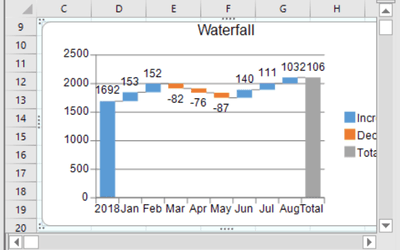
Spread supports various chart types with typical chart UI like labels, legends, axis, etc.
Sparklines
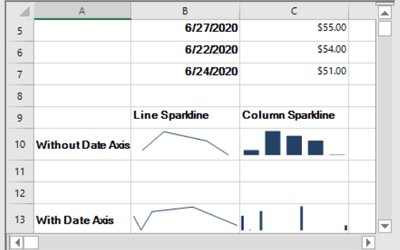
Sparklines are small charts that can be applied to quickly visualize data and transform it in a compact form in a cell.
Conditional Formatting
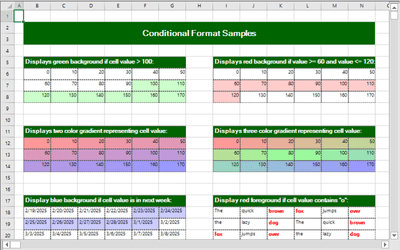
User interaction with individual cells or ranges can be customized using conditional formatting.
Enhanced Camera Shape
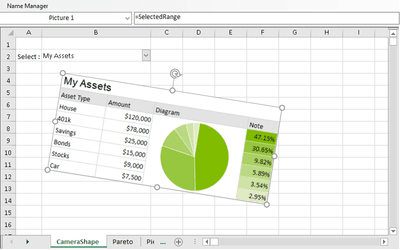
Camera shapes allow you to create a snapshot of a range of cells and use that as a shape in the Spread control.
Advanced Shape Engine
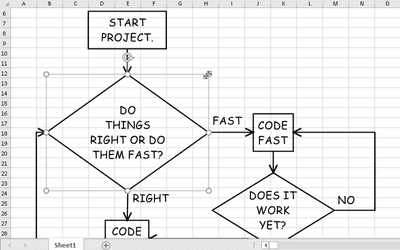
Spread supports an advanced shape engine that allows you to add, customize, and group shapes in a worksheet.
Support for Pictures
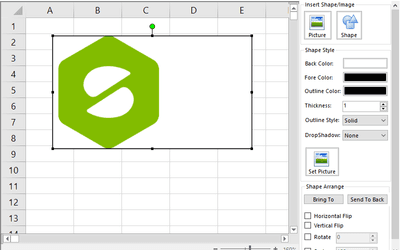
Images and pictures can be customized in Spread as part of the enhanced shape engine functionality.
Support for Customizing Drawing
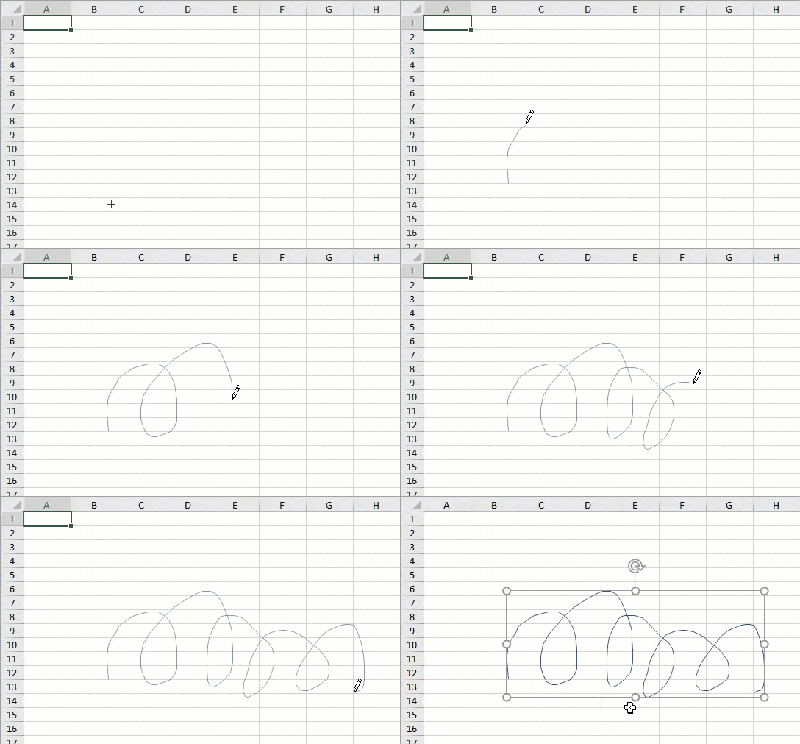
Drawing in Spread can be customized to fit specific requirements, both in code and at runtime.
Charts
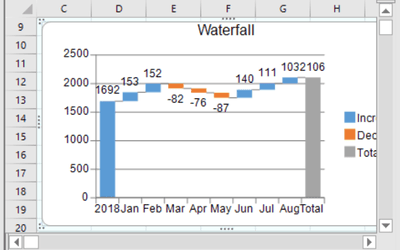
Charts in Spread support all of the standard chart features. Spread also supports different chart types, including Y, XY, XYZ, Pie, Polar, Radar, and Data Plots. In the plot area of a chart, Spread has support for Series, Walls, Axis, Char Line Style, Elevation, Rotation, Lighting, Shapes, and Borders. Charts in Spread also support adding labels to data, as well as legends to describe the chart elements, and error bars that display the variability of data points.
Sparklines
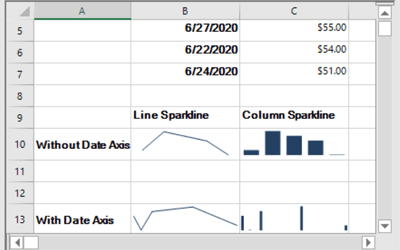
Spread supports setting sparklines within cells, which are essentially small charts in a compact form. Sparklines use data from a range of cells to help analyze data at the cell level. These come in different types: column, line, win loss, area, box plot, bullet, cascade, etc. Like charts, sparklines can be added using methods in code, specifying the type and the data. They can be enhanced by adding other styles and properties like changing the colors of negative points. Sparklines can also be created by using formulas.
Conditional Formatting
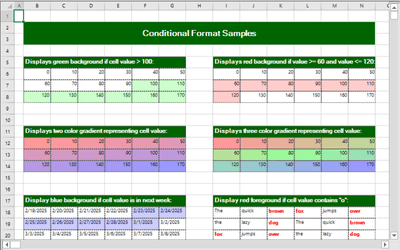
Spread support conditional formatting, which allows you to customize user interaction will cells or cell ranges. The visual appearance of cells can be changed with conditional formatting by specifying rules. These rules include things like averages, formulas, scale, errors, text, unique, etc. The average rule checks for values above or under the average, the scale rule uses a sliding color scale, the text rule searches for specific text strings, and the data bar rule displays a bar based on cell values. These can all be applied using the SetConditionalFormatting method.
Enhanced Camera Shape
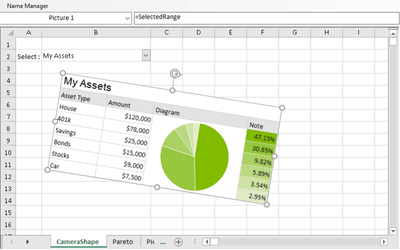
The enhanced camera shape in Spread is a mirror image of a referenced area in a spreadsheet. Any change in the referenced region is reflected in the image as well. with the enhanced shape engine, the camera shape can be moved, resized, rotated, and supported when importing or exporting Excel files. It can also be grouped or ungrouped with other shapes, and it can be copy-pasted from one sheet to another. These shapes can be displayed inside other camera shapes and are supported for Excel import/export if the EnhancedShapeEngine property is set to true.
Advanced Shape Engine
Shapes in Spread are compatible with Excel and all built-in shapes. You can copy shapes to and from Excel and vice-versa. With EnhancedShapeEngine set to true, a few different shape properties are enabled. You can group or ungroup shapes, and then manipulate the entire group of shapes at once by moving or rotating them. Shape properties can also be bound to specific cells. Shapes can also have different types of fills and effects applied to them, as well as setting the text orientation. With the enhanced shape engine, shapes can be dragged and copied, and added to charts.
Support for Pictures
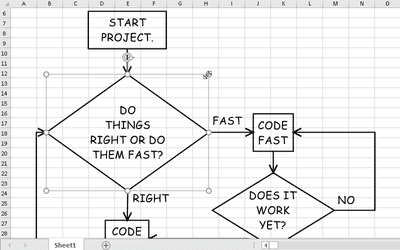
Spread supports images with all of the same features as shapes, and output images are supported for Excel Import and Export. Images can be cropped to trim any unnecessary outer edge parts of an image, and this can be done using code or at runtime using the UI crop handles. For code, you can set the ICrop interface to control the dimensions of an image and crop it accordingly. Pictures can be formatted using the IPictureFormat interface, which includes formatting options like brightness, contrast, black and white threshold, and transparency. Pictures can also be adjusted with various artistic effects, such as blur, color tone, film grain, saturation, and recolor.
Using Pictures in Shapes Documentation
Support for Customizing Drawing
Sheets in Spread have their own drawing layers that can contain built-in shapes, custom shapes, and annotations. Drawing customization includes creating standard shapes, camera shapes, images, and drawing with a tablet PC. Spread provides a limited set of functionality in support of “inking” on Tablet PCs that are enabled with the Microsoft Tablet PC SDK. This enables you to use a stylus on a Tablet PC for drawing and writing on the spreadsheet.
Powerful Calculation Engine
Spread supports over 500 formulas in the calculation engine, allowing users to enter and use formulas in their spreadsheets.
Custom Calculation Functions
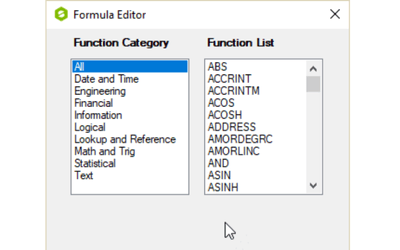
Formulas in Spread can include custom, user-defined functions that can be completely custom, or a combination of the available built-in functions.
Custom Data Visualization
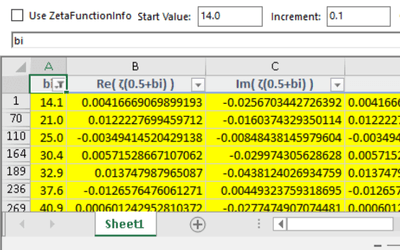
Enables custom data visuals via FunctionVisualizer, allowing dynamic graphics, error indicators, and formatting with the "VF." prefix.
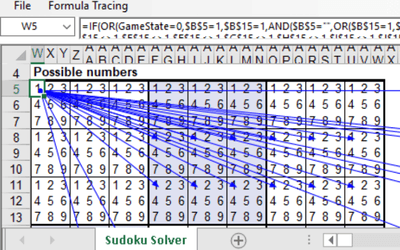
Formula Tracing & Auditing
Formulas in Spread can be traced to help with any calculation issues, debug formulas, and validate the accuracy of results.
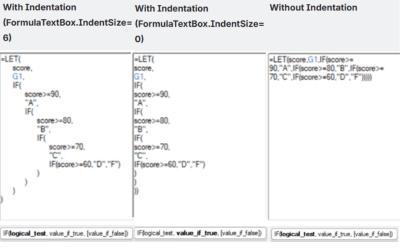
Formula Auto Indent
Automatically format long or complex formulas with intelligent multi-line indentation, making them easier to read, edit, and debug within the Formula Text Box.
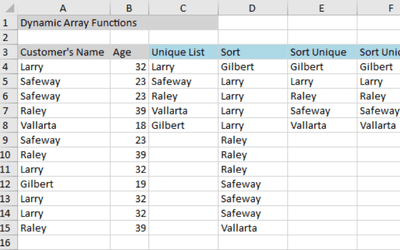
Array Formulas & Dynamic Arrays
Spread supports Array formulas and dynamic arrays to perform multiple calculations on arrays.
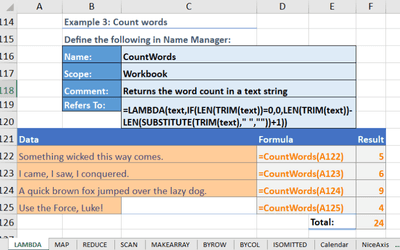
LAMBDA & LAMBDA Helper Functions
Lambda functions are used to create custom, reusable functions and call them by a desired name.
Displaying Formulas in Cells
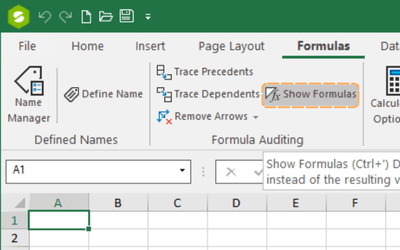
In Spread, you can display and highlight formulas in a cell instead of the final calculated value.
Using DataTable Formula
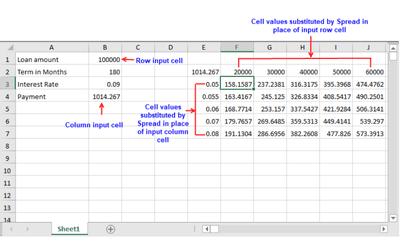
DataTables in Spread help with performing what-if analysis in worksheets, a process in which changing the values in cells affects the outcome of worksheet formulas.
Adding a Table Formula
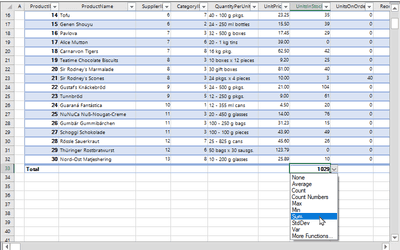
Formulas can be added to table in a total row at the bottom of the table with the Formula Editor or with code.
Language Packages for Formulas
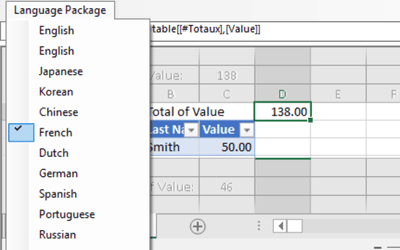
Spread provides additional language packages in order to enable users to set language preferences while working with spreadsheets.
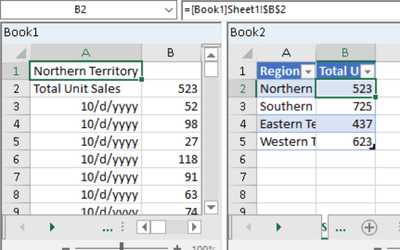
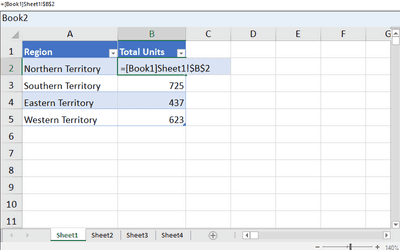
Cross-Sheet references & Linking
A formula can contain references to other sheets, known as cross-sheet referencing. These references can be used to have calculations running on multiple sheets without cluttering a single sheet.
Formula Text Box
A text box can be added to the Spread component that allows you to edit a formula for a specific cell.
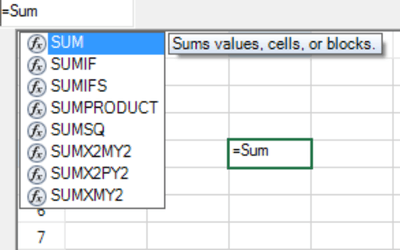
Powerful Calculation Engine
In Spread, there are over 500 supported formulas built-in, with standard formula operators and the ability to create custom functions. This lets you define and perform calculations for a range of data within any of the sheets in Spread. There are many types of supported formulas, including database, date and time, engineering, financial, information, logical, lookup, math and trigonometry, statistic, text, volatile, and web functions. These formulas also include various operators and the ability to use cell and sheet references.
Custom Calculation Functions
Spread.NET supports custom, user-defined functions. They functions can be called in the same way that other built-in functions can be called, and they can have up to 255 arguments. Additionally, a custom function can have the same name as a built-in function, and takes priority over it. Since they are dynamically linked at evaluation time, they can be redefined as needed. It should be noted that custom functions can be exported to Excel, but the implementation of said functions cannot be exported.
Custom Data Visualization
Spread.NET provides custom data visualization functions that allow users to create visually enhanced spreadsheet cells beyond standard text and numbers. By extending the FunctionVisualizer class, developers can define custom rendering logic, enabling cells to display custom shapes, color indicators, and graphical overlays based on spreadsheet formulas.
Using the ApplyFormat and IsShowCell methods, users can apply custom styling logic and dynamically adjust how data appears. To use a data visualization function, it must be registered as a VisualFunction, and formulas must include the "VF." prefix to reference it. This functionality is ideal for highlighting errors, progress tracking, and custom dashboard visualizations.
Formula Tracing & Auditing
In Spread, you can trace precedent and dependent cells. Precedents are cells or ranges that are referred to by formulas in other cells, whereas dependents contain formulas that refer to other cells. Tracing precedents and dependents helps with checking for calculation issues, debugging formulas, and validating the accuracy of results. These can be enabled by using the ShowPrecedents or ShowDependents method on a range. With these methods you can also display cells related to the selected formula cell and observe which cells are impacted if a cell value is modified.
Formula Auto Indent
The Formula Auto-Indent feature improves formula readability by automatically breaking long expressions into multiple lines and applying structured indentation based on the underlying expression tree. Developers can enable this behavior with FormulaTextBox.AutoIndent, control indentation depth via IndentSize, and define when wrapping occurs using FormatWidthLimit. When enabled, nested expressions, LET functions, and multi-level conditions become significantly easier to navigate, providing a clearer editing experience for both developers and end users.
Array Formulas & Dynamic Arrays
Array formulas are supported in Spread, which allow you to perform multiple calculations on one or more items in an array. They can return multiple results or a single result. These can be created at runtime or using the SetFormulaArray method. Dynamic array formulas are also supported. With these formulas, the elements of the array will spill into adjacent empty cells, and dynamic arrays will automatically resize when data is inserted or removed from the source range. Examples of these formulas include UNIQUE, SORT, SORTBY, SEQUENCE, RANDARRAY, SINGLE, and FILTER.
LAMBDA & LAMBDA Helper Functions
In Spread, LAMBDA functions can be used to create custom, reusable functions and call them by a desired name. You can create functions for commonly used formulas and effectively add your own functions. There are also various helper functions, such as BYROW, which applies a LAMBDA to each row and returns an array of the results, BYCOL, which applied a LAMBDA to each column and returns an array of the results, ISOMITTED, which checks whether the value in a LAMBDA is missing, MAKEARRAY, which returns a calculated array of a specified row and column size, MAP which returns an array formed by mapping each value in an array, REDUCE which reduces an array to an accumulated value, and SCAN, which scans an array.
Displaying Formulas in Cells
Spread allows you to display and highlight the formula in a cell instead of its final calculated value. This can be done using the DisplayFormula property on the worksheet to enable or disable the display and highlight of cell formulas. When that property is set to true, cell formulas are highlighted, and the column widths are also doubled to display long formulas. If the property is set to false, the column widths will be restored to the original width. This functionality can also be enabled with the Spread Designer by using the Show Formulas button in the Formula Auditing section.
Using DataTable Formula
Spread supports DataTables, which are ranges in which you can modify the values in some of the cells and come up with different solutions to a problem. You can apply the DataTable formula to a range of cells using the DataTable method, which creates a data table based on the input values and formulas that you define on a worksheet. DataTable formulas can be either one or two-variable, which lets you specify how many variables need to be tested. A one-variable DataTable lets you see how different values of one variable in one or more formulas will impact the results of those formulas. A two-variable DataTable uses a formula that contains two lists of input values, column, and row.
Adding a Table Formula
In Spread, you can add formulas to a table in a total row at the bottom of the table with the Formula Editor or with code. This can be done at run-time but adding a total row to a table and then selecting the drop-down arrow at the bottom right corner to display the formulas available. This can also be done by using the Formula property. You can also change the visibility of the Total row using the TotalRowVisible property. Additionally, you can automatically fill a column with the entered formula in the table by using the AutoCreateCalculatedColumns property.
Language Packages for Formulas
In Spread, you can use language packages to enable users to set language preferences while working with spreadsheets. This lets users localize function names and formula keywords by creating function aliases in different languages and manage worksheets without any hassle. Spread includes localization support for 18 built-in languages, including Chinese, French, German, Italian, Japanese, and Russian. Custom language packages can also be created in case a specific language is not supported. This can be done by simply creating function aliases for specific functions and then setting the custom language using the LanguagePackage property.
Cross-Sheet References & Linking
A formula can contain references to other sheets. When a reference to a cell includes a reference to a cell on another sheet, this is called cross-sheet referencing. This functionality can be enabled by setting the EnableCrossSheetReference property to true, and the entire workbook acts as a single calculation unit with all worksheets sharing the same calculation settings. When writing formulas, a sheet name can be specified directly in the formula, and Spread will calculate it accordingly.
Formula Text Box
The formula text box can be connected to a Spread instance. This is similar to the formula editor that’s available to the developer, but has the appearance of a text box and is available at runtime. It provides a list of calculation functions in addition to a visual method of selecting cell ranges for the formula. It can be used by creating a FormulaTextBox class and attaching it to the Spread instance at design time. In addition, the formula text box allows using intersection and mixed reference formula, as well as table formula with structured references.
Cell Types
Cell Types control user interaction and data display in .NET spreadsheets. These include editable cells (text, currency, number) and graphical cells (buttons, sliders, progress bars).
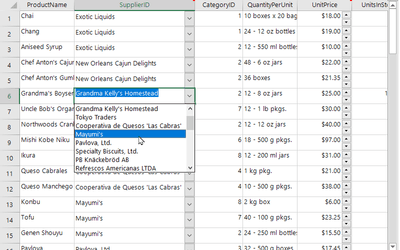
Create Custom Data Types
Create and use custom data types in Spread.NET, enabling rich data representation with structured objects and interactive pop-ups for easy access to object properties.
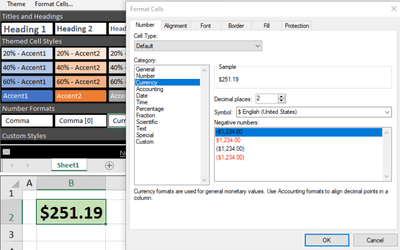
Formatting a Cell Value
Apply formatting directly to a cell value in C# spreadsheets, ensuring the format persists through calculations without affecting the cell’s properties.
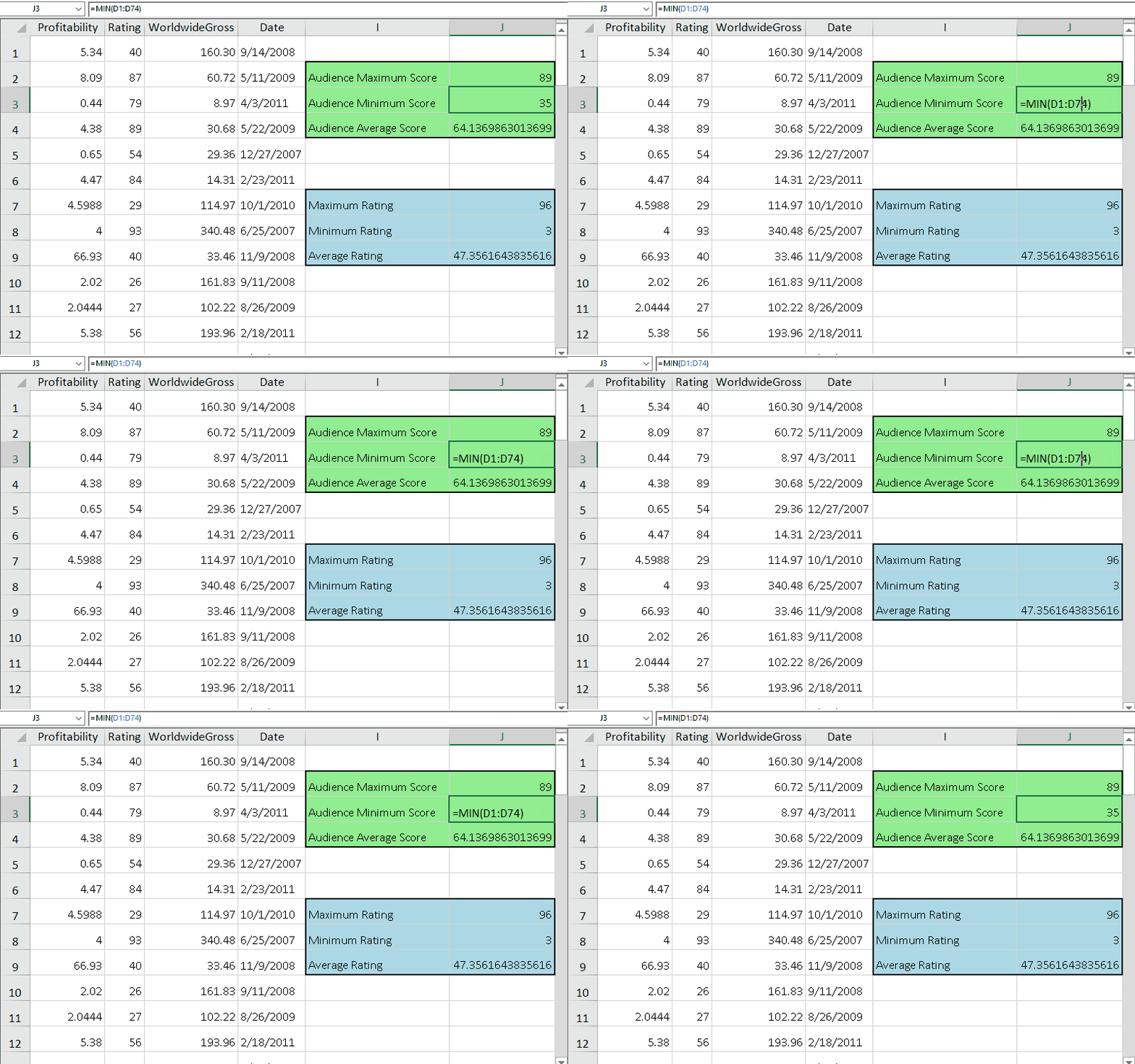
Formulas in Cells
Easily perform calculations in by adding formulas to cells. Use built-in functions, reference other sheets or workbooks, and automate recalculations for dynamic data updates.
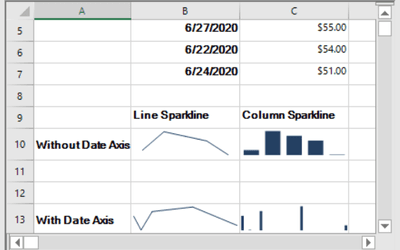
Sparklines
Visualize data trends with sparklines, compact charts embedded in cells. Spread for WinForms supports line, column, and win/loss sparklines for quick, in-cell analysis.
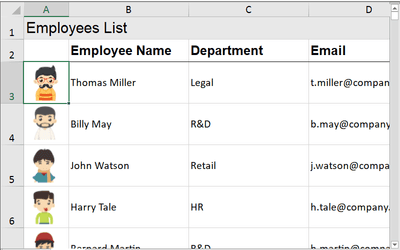
Add Image in a Cell
Easily insert images into cells in Spread for WinForms without changing the cell type. Add and customize images from file paths, byte streams, Base64 strings, or clipboard.
Cell Comments & Sticky Notes
Add cell comments and sticky notes to provide additional context, explanations, or reminders, with customizable display options and note indicators.
Cell Styles
Apply custom styles to cells, rows, or columns using named styles, defining colors, fonts, and alignment for a consistent spreadsheet design.
Cell Borders
Robust cell border customization allows users to apply single, double, beveled, rounded, and complex borders to cells, ranges, rows, and columns.
Merge & Span Cells
Manually span multiple cells into a larger unified cell for improved layout and readability in your C# .NET spreadsheet.
Enhanced Hyperlink Support
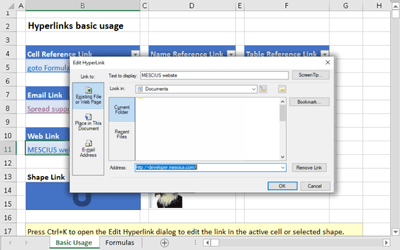
Enhance .NET spreadsheet navigation with hyperlinks in cells, allowing users to access webpages, emails, workbook ranges, or trigger custom actions.
Barcodes
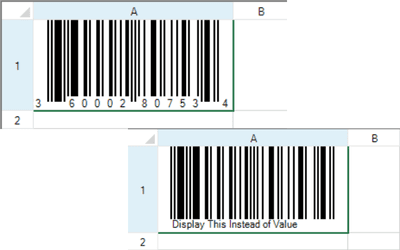
Display barcodes in C# spreadsheet cells using the BarCodeCellType, supporting multiple barcode formats, custom sizing, and embedded text messages.
Rich Text Editing in Cells
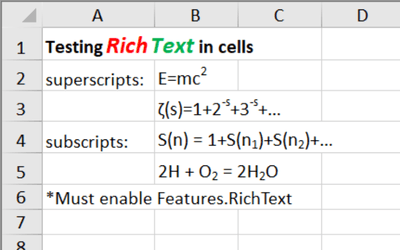
Enable .NET spreadsheet Rich Text Editing in cells to apply different fonts, styles, and text effects, with support for formulas and built-in formatting dialogs.
Cell Types
Cell types in Spread.NET define how data is displayed, formatted, and interacted with at the cell, row, column, or sheet level. They are categorized into editable cell types, which handle user input, and graphical cell types, which provide interactive controls like buttons and checkboxes. Spread.NET includes a variety of built-in cell types and also supports custom cell types for advanced customization.
Each cell type consists of an editor (for user input), formatter (for display), and renderer (for painting the cell). While header cells can be assigned cell types, they primarily serve visual purposes rather than user interaction. Additionally, graphical cell types may be affected by XP themes, and disabling the VisualStyles property can allow greater customization.
For detailed implementation, refer to the FarPoint.Win.Spread.CellType namespace documentation.
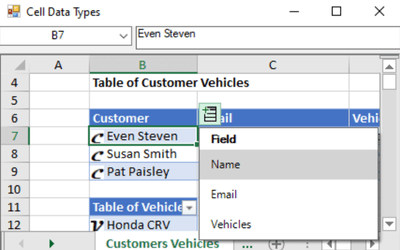
Create Custom Data Types
Spread.NET supports custom data types, allowing structured objects to be inserted into cells with an interactive data card popup. Users can access object properties, extract fields into adjacent cells, and expand table columns dynamically.
Enable this feature by setting CalcFeatures enumeration and using the IRichValue interface. Built-in support for DataTable and DataView allows seamless integration. Users can reference object properties in formulas for calculations.
Customize data card popups with ResolveCustomControl to modify UI elements, insert buttons, or adjust displayed information, enhancing data accessibility and usability.
Formatting a Cell Value
Spread for WinForms allows formatting to be applied directly to a cell value rather than the cell itself. This ensures that the format string remains consistent even when used in calculations. Using the IFormattedCellValue interface, developers can define a formatted value that retains its display formatting across references and formulas. The FormattedCellValue class simplifies this process, enabling custom formats such as dates, currency, and percentages to be set at the value level. This approach ensures that formulas referencing a formatted cell inherit the formatted display rather than the raw value. While this feature works seamlessly in code, it is not supported in the Spread Designer or through Excel I/O. It also integrates smoothly with custom cell types while maintaining read-only behavior.
Formulas in Cells
Formulas in .NET spreadsheets allow you to perform calculations directly in cells, referencing other cells, sheets, or external workbooks. You can create formulas using standard operators, built-in functions, and custom functions. Advanced formula handling includes nesting functions, working with circular references, defining named ranges, and using dynamic arrays.
The Spread.NET also supports automatic recalculations, goal seek, and formula auditing with precedents and dependents. Users can enter formulas manually, use the floating formula bar, or leverage the Spread Designer for easier formula creation. Additionally, the .NET spreadsheet API’s CalcEngine ensures efficient formula execution.
Sparklines
Sparklines provide a compact and powerful way to visualize data trends directly inside C# .NET spreadsheet cells. Unlike full-size charts, they fit within a single cell, making them ideal for quick comparisons and trend analysis. You can create sparklines using the AddSparkline methods or sparkline formulas, selecting from different types such as line, column, and win/loss sparklines. Additionally, you can customize axes, markers, and colors to highlight key insights. Whether tracking financial trends, sales performance, or temperature changes, sparklines provide real-time, in-cell analytics to improve data-driven decision-making.
Add Image in a Cell
Spread for WinForms allows developers to insert images directly into cells while maintaining full spreadsheet functionality. You can load images using file paths, byte arrays, streams, or attributes, and display them alongside text for rich, visual data presentation. Images can be added via code using the InsertPictureInCell method, copied and pasted from the clipboard, or inserted at runtime through the ribbon toolbar. Additionally, Spread provides various sizing modes such as Fit, Fill, Original, and Custom, ensuring images scale properly within cells. Whether embedding icons, logos, or user-uploaded images, this feature enhances visual clarity in spreadsheet applications.
Cell Comments & Sticky Notes
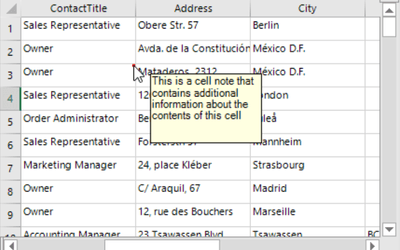
Allows .NET spreadsheet users to attach informative notes to individual cells or ranges. Comments can provide explanations, source references, or additional details about cell values. A cell note indicator, typically a small red square, appears in the upper-right corner of a cell to signify a note. Notes can be set to display on hover or remain visible as sticky notes, which can be repositioned like movable shapes. Users can also edit notes directly if enabled. Customization options include changing note indicator color, size, and positioning, as well as automatically resizing notes based on content. These notes enhance usability by providing clear, accessible annotations for spreadsheet data.
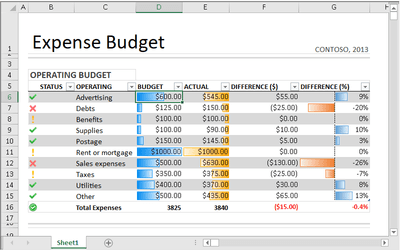
Cell Styles
Spread for WinForms allows developers to apply predefined or custom styles to individual cells, ranges, rows, or columns. Styles include background color, text color, font, alignment, and more, offering a flexible way to format spreadsheet content. Named styles can be created, saved, and applied across multiple cells, ensuring consistency while reducing repetitive styling efforts. The StyleName and ParentStyleName properties help manage inherited formatting, allowing cells to share common attributes while maintaining individual adjustments. Styles can be applied programmatically, via the NamedStyleCollection Editor, or the Spread Designer UI, making it easy to create professional and visually appealing spreadsheets.
Cell Borders
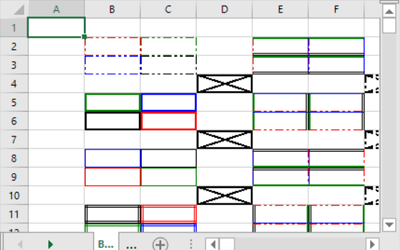
Spread.NET offers extensive options for customizing cell borders, enhancing the visual appeal and organization of spreadsheet data. Developers can set borders for individual cells, ranges, rows, columns, or entire sheets, with options to customize the left, right, top, bottom, or all sides of a cell. Border styles include beveled, complex, compound, double-line, single-line, and rounded-edge single-line borders, providing flexibility to achieve a variety of designs.
Using the SetOutlineBorder and SetInsideBorder methods, Spread.NET allows for easy application of borders around or within cell ranges. The BorderCollapse property controls how borders overlap, with options for Separate, Collapsed, and Enhanced modes to optimize border rendering for different layouts.
Merge & Span Cells
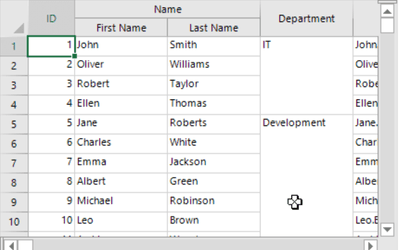
The Merge & Span Cells feature in Spread for WinForms allows users to combine multiple adjacent cells into a single larger cell. Unlike auto-merging, which dynamically groups identical values, spanning is a manual process that creates a visually unified cell while retaining individual cell data. When a span is applied, the content of the anchor cell—the first cell in the span—takes precedence and occupies the entire merged area, while the data in other spanned cells is hidden but not deleted. Spanning can be applied to both data and header areas using the AddSpanCell method or via the Spread Designer UI. Spans can also be removed at any time using the RemoveSpanCell method, restoring individual cell content. However, spans may be affected by sorting operations, so they should be applied with consideration to the spreadsheet’s structure.
Enhanced Hyperlink Support
Spread for WinForms offers Enhanced Hyperlink Support, enabling users to insert hyperlinks that navigate to web URLs, email addresses, cell ranges, or custom actions. Hyperlinks can be added programmatically using the Add method (IHyperlinks) or automatically created when users enter link-like values. Developers can also modify, delete, or customize hyperlink styles, changing the appearance of visited and unvisited links. The built-in Insert Hyperlink dialog simplifies hyperlink management, while event handling allows for custom actions instead of standard navigation. With full UI support, tooltips, and formatting options, hyperlinks improve usability and interactivity within .NET spreadsheets.
Barcodes
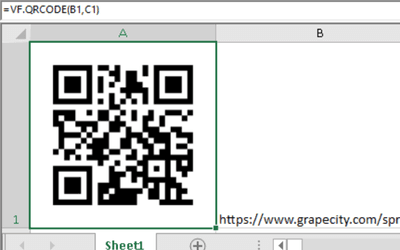
Easily integrate barcodes into .NET spreadsheet with the BarCodeCellType in Spread for WinForms. This feature allows you to display various barcode formats, including Code128, QRCode, UPC, PostNet, and more, making it ideal for retail, shipping, and inventory management applications. Customize barcode appearance with options for size, rotation, resolution, and embedded messages. Users can set barcode properties via code, the Properties Window, or the Spread Designer. Additionally, built-in support for custom text messages beneath the barcode image enhances readability. Whether applying barcodes programmatically or through the UI, Spread provides a seamless way to embed scannable data into your spreadsheets.
Rich Text Editing in Cells
The Rich Text Editing feature in Spread for WinForms allows users to format text within .NET spreadsheet cells, applying different fonts, styles, colors, and text effects. Developers can enable this feature by setting RichTextEditMode to On, allowing text to be edited with rich formatting instead of plain text. The built-in Font Dialog provides an easy way to modify font settings, while the IRichTextEditor interface allows programmatic control over rich text styling. Additionally, Spread Designer includes auto-complete, IntelliSense, and dropdown selection for streamlined text entry. With support for formulas and Insert Function dialogs, rich text editing enhances readability and customization within spreadsheets.
Tables & Table Styles
Tables can be created in Spread to help analyze data quickly and efficiently.
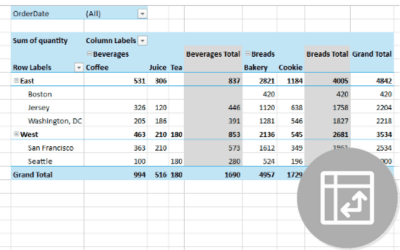
Pivot Tables
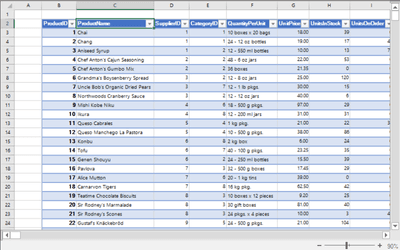
Add a powerful WinForms Pivot Table engine to enable users to summarize, analyze, and explore large datasets directly within .NET spreadsheet apps.
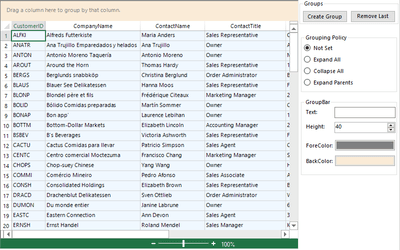
Outlook-Style Grouping
You can set up the display to allow Outlook-style grouping of rows. For large amounts of data, this is helpful to display the data in the order the user needs.
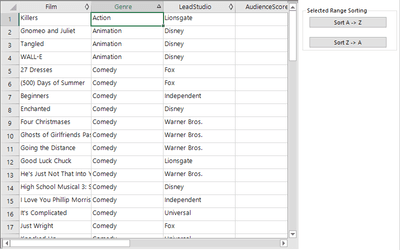
Advanced Sorting
Data in spread can be sorted either by column or by row. There are many ways in which data can be sorted, with various properties and methods for each type of sorting.
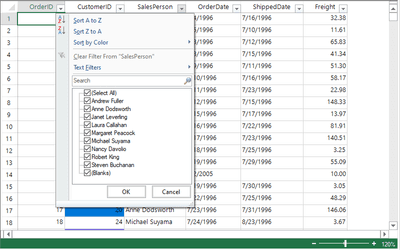
Custom Filters
Data in Spread can be filtered to only show data that fits specific conditions specified by the user.
Slicers
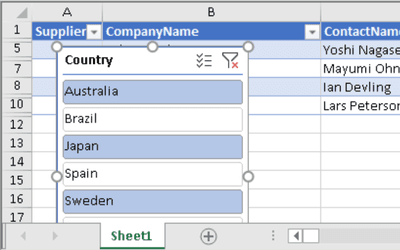
Spread supports using slicers, which are visual filters that enable users to perform quick filtration of data in tables without using drop-down lists.
Text-To-Column Support
Use Text to Columns to split text in a cell into multiple columns based on delimiters or fixed widths, creating a structured tabular format.
What-If Analysis
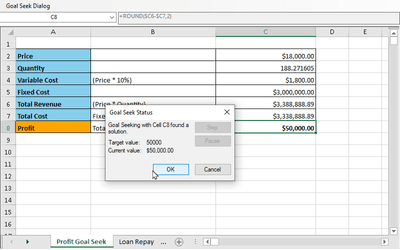
Spread supports the Goal Seek feature, which lets you determine the input value in a formula that results in a particular target value.
Data Validation
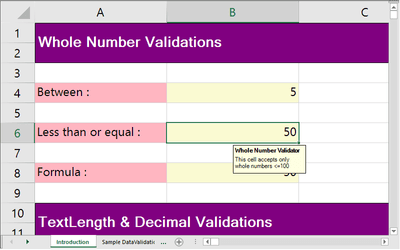
Spread supports data validation to validate the contents of cells via input from a user.
Tables & Table Styles
Spread supports creating a table from a range of cells to make managing and analyzing a group of related data easier. Tables include banded rows, columns with data, a header row, a total row, and a sizing handle. The data in the table can be managed independently from data in other rows or columns on a sheet. Tables in spread also support filters, resizing, and sorting. You can also apply styles to a table or bind it to data. Formulas can also be added to the table, and cells within the table can be used in other formulas using structured references.
Pivot Tables
This WinForms Pivot Table allow developers to deliver flexible, Excel-style data summarization within .NET applications. Using IPivotCaches.Create and IPivotCache.CreatePivotTable, you can generate PivotTables from ranges or structured tables, configure row and column fields, and add value fields using built-in summary functions such as Sum, Count, or Average. The feature supports row labels, column labels, filter fields, and dynamic values areas to make large datasets instantly analyzable. Developers can wrap multiple configuration steps in IWorkbookSet.BeginUpdate() and EndUpdate() to optimize performance during batch updates. Pivot Tables can be refreshed at any time through IPivotCache.Refresh() to ensure results stay current with underlying data changes.
Outlook-Style Grouping
Spread supports Outlook-style grouping of rows, which is helpful for displaying large amounts of data in the order that the user needs. You can select columns to group by either double-clicking on the header or clicking and dragging the column into the grouping bar at the top of the Spread instance. Groups can either be expanded or collapsed at runtime using the expand/collapse indicators, and Spread supports multiple levels of grouping. When using multiple levels, the higher level is the parent group and the lower level is the child group.
Advanced Sorting
Sorting in Spread can be done in various ways, one of which is automatic sorting. This can be accomplished by letting the user automatically sort rows by clicking on a column header. Rows and columns can also be automatically sorted via code. In addition to sorting rows and columns, ranges of cells can also be sorted. Textual information can be sorted in alphabetical order, numbers in ascending/descending order, dates from newest to oldest and vice versa, and data based on the colors and icons in a cell range. Sort indicators can also be customized by setting custom images, hiding them, or selecting specific rows to show sort indicators.
Custom Filters
Spread provides different ways to customize filtering data, providing users the ability to change data’s appearance or temporarily hide data based on conditions that they specify. Filtering on a spreadsheet can be enabled for the user to perform row filtering for all or specific columns. The appearance of filtered rows can also be changed using NamedStyle objects. Simple row filtering can be customized through customizing the filter list or creating a custom filter. Enhanced filtering can also be turned on to provide a drop-down list to the user of available filters to apply to the data. The appearance of the filter bar and filter indicators can be customized.
Slicers
Slicers in Spread are visual filters that allow users to filter data in tables without using drop-down lists. Multiple slicers can be added to a single table, and slicer items can be selected or cleared. Slicer settings can also be modified to match specific preferences using the Caption property. Slicer formatting can be modified to change things like width, height, ColumnWidth, and RowHeight. Slicer style can be customized to change font styles, size, and color.
Text-To-Column Support
.NET spreadsheet controls allow users to easily convert multi-word text or comma-separated values into distinct columns for better organization. This can be done using delimiters, such as commas or spaces, or by defining fixed-width breaks. Developers can implement this feature programmatically using the TextToColumns method, enable the built-in Text to Columns dialog for user interaction, or access it via the Spread Designer ribbon UI. This functionality is especially useful for processing CSV data, names, addresses, or other structured text while ensuring a clean, tabular format in spreadsheets.
What-If Analysis
The Goal Seek functionality is supported in Spread. This can be accomplished using the GoalSeek method, which is used to find a value that will produce the desired result for a formula. This allows you to perform what-if analysis in worksheet, in which altering the cell values affects the outcome of worksheet formulas. In addition to the method, Spread provides a dialog for Goal Seek in the Spread Designer. This can also be invoked at runtime using the GoalSeek method of the BuiltInDialogs class.
Data Validation
The content of cells in Spread can be validated in a number of ways with Data Validation. Data within cells can be validated using built-in validators , including cell comparison, character format, string comparison, value comparison, encoding, etc. Cell content can also be validated using Cell Type Validation, which will verify that that the content fits the requirements of the cell type’s format and settings. This data will be checked when it is entered by the user or through code, when the component loses focus, or both. The error messages for the input validation can also be customized. In addition, error icons can be displayed in cells or rows to indicate invalid data in the sheet.
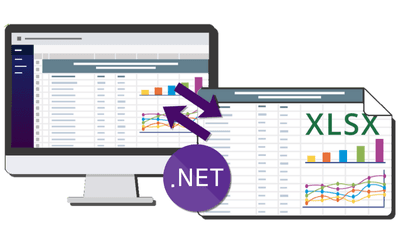
Importing & Saving to an Excel XLSX File
Seamless import and export of Excel XLSX files in .NET spreadsheet apps, preserving formatting, formulas, and advanced document content.
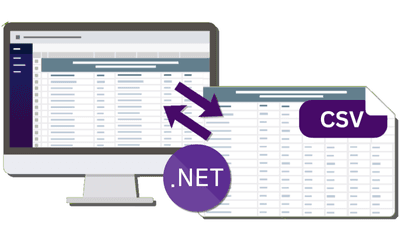
Importing & Saving to CSV File
Load data from existing text files into worksheets and save sheets as CSV or delimited text while preserving headers and formatting.
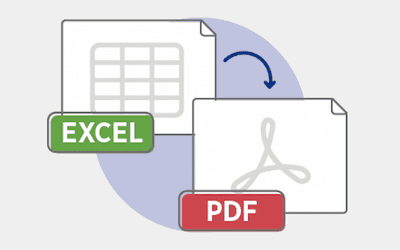
Saving to a PDF
Save Spread.NET workbooks or worksheets as PDF files using the SaveAs method. Retain high-quality formatting, enhanced borders, and Excel-compatible printing settings.
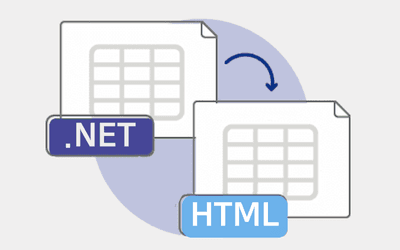
Saving to an HTML File
Save a .NET workbook or worksheet data as an HTML file using the SaveAs method. Export formatting, headers, and data while customizing output with export options.
Saving to an Image File
Save .NET worksheet data as an image using the SaveImage method, which converts a selected cell range into a bitmap.
Importing & Saving to a Spread XML File
Import and save XML files in a .NET spreadsheet using C#, enabling seamless data exchange. Load XML files and save workbook data and formatting using the API.
Importing & Saving to an Excel XLSX File
Spread.NET provides seamless Excel file support, enabling you to open and save .xlsx files while maintaining data integrity. The OpenExcel method allows loading entire workbooks or individual sheets, with options to handle frozen rows, columns, and formatting. When saving, the SaveExcel method supports UseOOXMLFormat for XLSX compatibility and Exchangeable to retain spreadsheet settings. Spread.NET also offers document caching to prevent data loss in advanced Excel content like macros and ActiveX controls. Whether opening, editing, or exporting Excel files, Spread.NET ensures compatibility and accuracy.
Importing & Saving to CSV File
With this .NET spreadsheet control, you can open and save CSV and custom text files, making it easy to exchange data with other applications. To import data, you can use the LoadTextFile method, which lets you define delimiters, such as commas or tabs, ensuring that data is correctly placed in cells. Spread.NET also supports exporting sheets to text files using the SaveTextFile or SaveTextFileRange methods, allowing you to specify delimiters, include headers, and control the formatting of saved data. Whether you’re working with large datasets or structured text formats, Spread.NET provides flexible options to handle text-based file operations efficiently.
Saving to a PDF
Spread.NET enables you to save worksheets and workbooks as PDFs using the SaveAs method. This ensures that formatting, styles, and layout remain intact, producing a professional, print-ready document. To achieve optimal results, ExcelCompatiblePrinting should be Enabled, BorderCollapse set to Enhanced, and LegacyBehaviors.Style excluded. Additionally, Spread.NET supports ISO-compliant PDF/A-3U exports for long-term archival needs. Whether for reporting, document sharing, or regulatory compliance, the PDF export feature delivers high-quality, structured output.
Saving to an HTML File
Spread.NET allows saving cell data and formatting as an HTML file, making it accessible via web browsers. You can export an entire workbook or a specific worksheet using the SaveAs method of the IWorkbook or IWorksheet interface.
For enhanced customization, the ExportOptions property lets you control elements like row headers, column headers, and formatting. Additionally, you can export the data to a file or stream, making it flexible for various use cases.
Limitations: Saving to HTML works only in flat-style mode, and certain options like NoFormulas and ExternalReference are not supported.
Saving to an Image File
Spread.NET allows saving worksheet data as an image file by converting a specified cell range into a bitmap instance using the SaveImage method. This method takes parameters such as row, column, row count, and column count to define the range to be captured.
Once created, the bitmap can be saved in various image formats (e.g., PNG, JPEG) using the .Save method. Additionally, the image can be used as a graphic, integrated into reports, or set as a UI element. The feature is compatible with the EnhancedShapeEngine, ensuring proper rendering of cell styles and formatting.
Importing & Saving to a Spread XML File
You can import XML files into Spread.NET using the OpenXML method, which supports both file paths and streams. This enables loading structured data into the workbook while maintaining formatting and properties.
To save data and formatting, use the Save method in the FpSpread class, which exports the workbook as a Spread-compatible XML file, or the SaveXml methods in the SheetView class.
The Spread Designer also supports saving XML files via File > Save As. For more details, refer to the SaveXml and OpenXML methods.
Print Spreadsheet
Print entire spreadsheets or specific sections with customizable settings, print previews, duplex printing, and Excel-like print dialogs.
Search
Quickly search for data in any sheet using built-in search dialogs or programmatic search methods, with options for standard and advanced searches.
Managing External Reference
Seamlessly reference and update data between workbooks using external references, with support for cached data, XLSX files, and automatic updates.
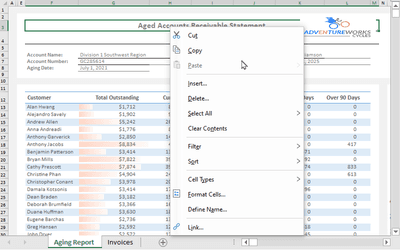
Displaying Context Menu at Runtime
Display and customize context menus at runtime in .NET applications without attaching them to a ribbon, offering tailored menu options for different spreadsheet areas.
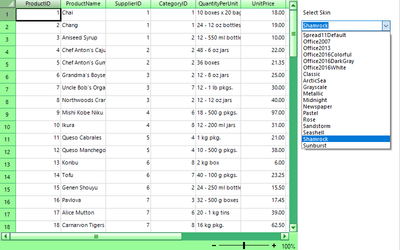
Skins
Customize the look and feel of your .NET spreadsheet with built-in or custom skins, easily applied via code using C# or VB, or the Spread Designer.
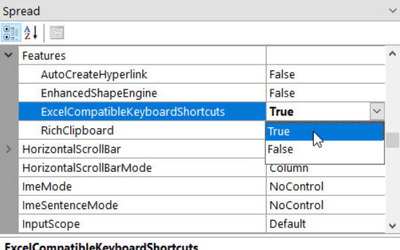
Excel-Compatible Keyboard Shortcuts
Customize keyboard interactions by mapping user keystrokes to specific spreadsheet actions, modifying default behaviors, or adding new shortcuts.
Outline & Range Group
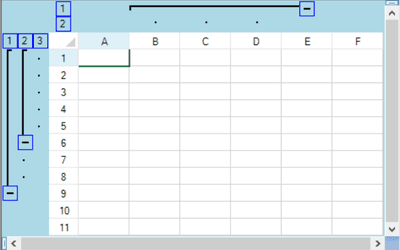
Spread.NET supports row and column outlining (range grouping), allowing users to expand or collapse structured data for better organization.
Pinned Rows or Columns
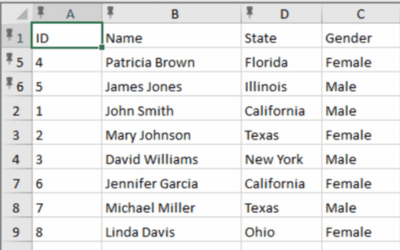
Keep important rows or columns visible while scrolling by pinning them in place, making it easier to compare data or maintain context in large spreadsheets.
Print Spreadsheet
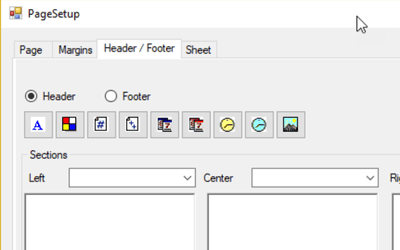
Seamlessly print spreadsheets with full control over layout, appearance, and page settings. Spread’s flexible printing capabilities allow you to print entire sheets or specific sections while customizing margins, headers, footers, and scaling options. Users can preview print output, apply printer settings, enable duplex printing (double-sided), or print multiple pages on a single sheet. The built-in PrintSheet method in the FpSpread class, combined with the PrintInfo object, enables detailed configuration for each sheet. Additionally, developers can integrate print preview dialogs similar to Excel, ensuring a user-friendly experience. Printing options can also be managed within the Spread Designer, offering further flexibility. By default, printing uses the system’s default printer, but users can specify alternative Windows-supported printers as needed.
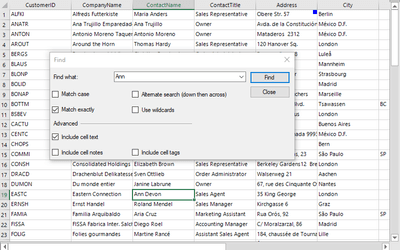
Search
Easily locate data within a workbook using Spread.NET’s flexible search capabilities. Users can perform searches through an intuitive search dialog or leverage advanced search options for more refined queries. Developers can programmatically search for specific values across sheets, enabling customized search functionality within applications. Whether using the built-in search tools or implementing custom search logic via the API, Spread.NET ensures efficient .NET spreadsheet data retrieval and navigation.
Managing External Reference
Manage external references in Spread for WinForms to link data across multiple workbooks effortlessly. Reference cells or ranges from another workbook, whether in-memory or from an XLSX file, with automatic data retrieval and caching. External references update dynamically when source values change, ensuring consistency across workbooks. Developers can create, modify, and break links programmatically, preserving referenced values when needed. Spread.NET’s workbook set feature enables smooth data interaction, allowing users to open external files, define custom names for references, and seamlessly integrate linked data within spreadsheet applications.
Displaying Context Menu at Runtime
Enhance user interaction by displaying context menus at runtime in Spread.NET. Unlike design-time behavior, Spread does not include a default context menu but allows developers to implement a custom menu using the ContextMenuStrip property. Right-clicking on different areas—cells, row headers, column headers, or the sheet corner—can trigger context-specific menu options. Additionally, developers can display menus similar to design mode using event-driven customization with BeforeRightClick. If needed, the context menu can be removed programmatically. This flexibility enables seamless integration of right-click actions without requiring a ribbon control, improving the overall spreadsheet user experience.
Skins
Enhance the visual appeal of your spreadsheet with Spread Skins, which allow you to apply built-in themes or create custom skins for a personalized look. By default, Spread.NET applies the Excel 2016 Colorful skin, but users can switch to other predefined skins from the DefaultSkins class or design their own using the SpreadSkin Editor. Skins can be applied at the component, sheet, or cell level through the Apply method in code or via the Spread Designer’s UI. Additionally, skins can be saved and loaded for reuse, ensuring a consistent and professional spreadsheet appearance.
Excel-Compatible Keyboard Shortcuts
Enhance user experience by customizing keyboard interactions in Spread.NET. The component supports input maps and action maps, allowing you to assign specific keystrokes to spreadsheet actions. Default mappings, such as using the Home key to move to the first cell in a row, can be modified or extended to fit your application’s needs. Developers can create new shortcuts, deactivate defaults, or use Excel-compatible input maps for a familiar user experience. These mappings can be saved, loaded, and applied at different levels, including individual sheets or child views, ensuring a highly flexible and intuitive navigation system.
Outline & Range Group
Spread.NET allows users to create outlines (range groups) for rows and columns, enabling expandable and collapsible sections for structured data organization. This feature provides an additional outline area beyond the headers, where users can control grouping levels. Collapsed rows remain visible when expanded again, ensuring a seamless experience similar to traditional spreadsheet applications. Users can also customize the appearance of outlines and configure grouping behavior to suit their needs.
Pinned Rows or Columns
Pinned rows and columns allow users to anchor key data at the top or left of the worksheet as they scroll through information. Using TogglePinnedRows() and TogglePinnedColumns(), developers can pin specific rows or columns while still combining this feature with existing frozen panes. If a pinned row falls within a frozen range, it automatically behaves as a frozen row for consistent display. This feature helps maintain visibility of headers, reference values, or priority rows, improving usability when navigating large datasets.
Launch Designer During Run-Time
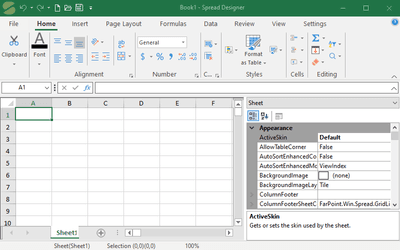
Launch Spread Designer at runtime to modify spreadsheets dynamically using the ShowDialog method, allowing users to edit layouts, styles, and data directly within the application.
Add Ribbon Toolbar to a Forms App
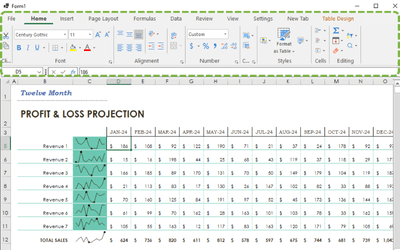
Add a .NET familiar Ribbon Toolbar to your WinForms app for enhanced navigation, command execution, and UI customization in Spread.NET.
Spread Designer Dialogs
Easily configure spreadsheet settings using the built-in Spread Designer Dialogs, which provide intuitive controls for formatting, data input, and customization.
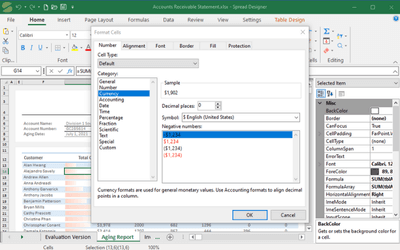
Launch Designer During Run-Time
Easily open the Spread Designer at runtime to modify and customize spreadsheets within your application. Spread for WinForms allows developers to embed the FpSpreadDesigner component alongside the FpSpread component, enabling users to access the designer through code. By calling the ShowDialog method, the designer can be launched dynamically, allowing real-time spreadsheet editing. This feature enhances flexibility by giving users a built-in design interface to configure formatting, data structures, and properties without needing to modify the application code.
Add Ribbon Toolbar to a Forms App
Enhance your Forms application with the Spread Ribbon Toolbar, an Excel-style UI component that replaces traditional menus and toolbars with a structured tab-based navigation system. The RibbonBar object organizes commands into tabs and groups, improving usability and accessibility. Developers can easily attach the ribbonBar to the Spread component, manually generate default items, or override built-in commands for custom behaviors. Additionally, commands can be executed dynamically at runtime, and custom tabs, groups, and items can be added to fit application needs. The Enhanced Shape Engine and Rich Clipboard Support provide additional Excel-like interactions, making the Ribbon Toolbar an ideal addition for modern C# spreadsheet applications.
Spread Designer Dialogs
The Spread Designer Dialogs offer a user-friendly way to customize spreadsheet properties and enhance functionality. These dialogs allow users to configure cell types, formatting, sorting, conditional styles, print settings, and more without writing code. Common dialogs include the Cell Type Dialog for defining input types, the Conditional Formatting Dialog for dynamic styling, and the Sheet Print Settings Dialog for fine-tuning print layouts. Additionally, tools like the Forecast Sheet Dialog, Goal Seek, and Zoom Dialog help optimize data visualization and analysis. These built-in dialogs streamline spreadsheet design, making complex configurations quick and accessible.
Add a Spreadsheet Component
Spread is a spreadsheet component that can be added to your application.

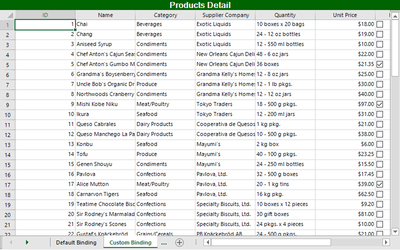
Bound & Unbound Modes
Bind a database to the Spread component and customize how data is bound, including features like hierarchical display or use in Unbound mode.
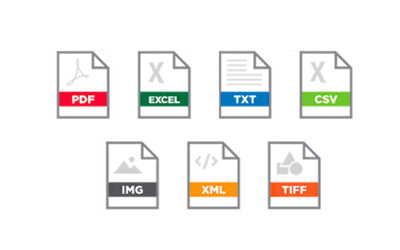
File Operations
Open and save data in Spread with different file types, with the ability to save the whole component, a sheet, or a range of cells.
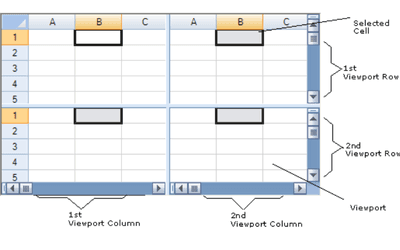
Create Multiple Viewports
Spread supports displaying separate viewports in one instance.
Protecting a Worksheet
Protect worksheets with a password to prevent other users from accidentally or deliberately changing, moving, or deleting data.

Customizing the Sheet Appearance
Change the appearance of the Spread component by customizing different parts of the Spread component.
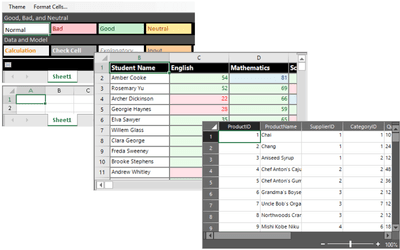
Customizing Interaction in Cells
Customize user interaction with the spreadsheet. Choose what users are allowed to do, including selection, drag operations, validation, undo/redo, and context menus.
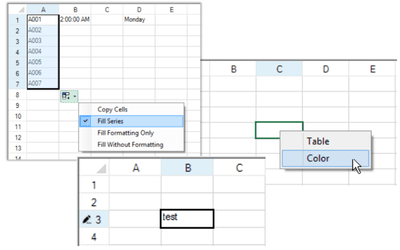
Customizing Row or Column Interaction
Change how a user can interact with rows or columns by customizing sorting, filtering, and grouping rows and customizing outlines, searching, and row/column size and styles.
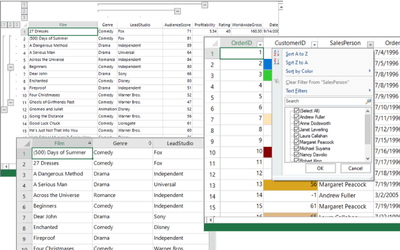
Events for User Actions
Spread fires events for user actions. You can bind to these events and implement custom functionality.

Status Bar
Display information and set zoom settings with a bar at the bottom of the Spread instance.
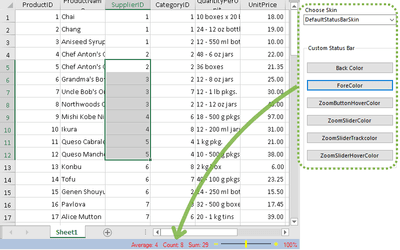
Working with Built-In Dialogs
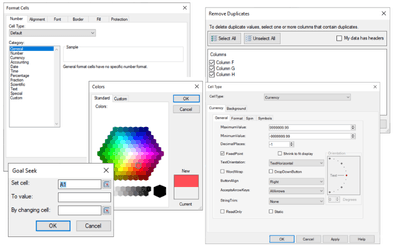
Spread includes built-in dialogs that enable users to change different properties and settings.
Working with Scroll Bars
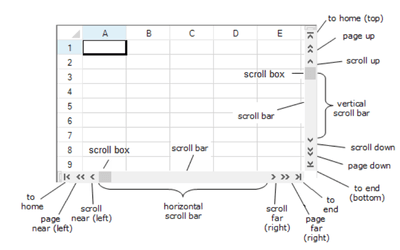
The Spread component includes scroll bars if the spreadsheet can’t fit on a single screen. These scroll bars can be customized to suit the application.
Touch Support
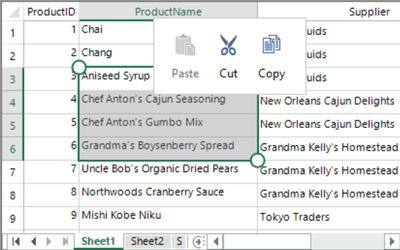
Spread supports touch gestures in many areas of the control, including while filtering, grouping, sorting, and many others.
Globalization & Localization
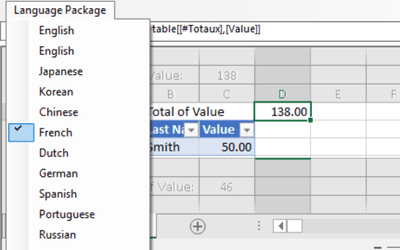
Spread.NET enables globalization and localization with built-in language packages and custom function aliases, allowing seamless translation of function names, formulas, and UI elements.
Add a Spreadsheet Component
Spread can be added to a project with Visual Studio in just a few easy steps. In Visual Studio, the component can be added to the toolbox. Once added, it is as simple as double clicking or clicking and dragging the Spread component into your application design window. This will automatically add the correct references to your project. At design-time, this will also give you access to the Spread Designer, and you can optionally connect a status bar or a formula text box to the spreadsheet.
Bound & Unbound Modes
You can bind the Spread component to an external data set, such as data in a database. You can easily customize how data is bound and include features like hierarchical display. Data can be bound to entire sheets, columns, cell ranges, or combo boxes. Binding the data can be done in either the Properties window of the Spread Designer or using code.
File Operations
You can open and save data from several different file types into and out of Spread. You can save the whole component, a particular sheet, or data from a particular range of cells. Spread supports saving to XLSX, PDF, TXT, Images, or HTML, and opening XML,XLSX, and custom text files. Objects in the spreadsheet or the entire spreadsheet component can be serialized using the SpreadSerializer or Serializer. You can also save and load skins for a sheet or the entire component using the SpreadSkin class.
Create Multiple Viewports
Spread supports customizing viewports by dividing up the display into separately scrollable viewports. This supports a set of horizontal, vertical, or both viewports. This allows you to display different parts of a very large spreadsheet in a very limited viewing area, letting you add, remove, and customize viewports programmatically. End users can also create and use viewports. This also supports frozen rows and columns, where they are treated as a separate viewport.
Protecting a Worksheet
You can add a password to a worksheet to prevent other users from accidentally or deliberately changing, moving, or deleting data. Spread provides a variety of password protection and lock options. The Protect method can be used to lock a sheet via code, whereas protecting a sheet can be done using a dialog in the Spread Designer. There are many options in regards to how a workbook can be protected that can be enabled or disabled. This includes selecting locked cells, formatting cells, inserting rows, deleting columns, sorting, etc.
Customizing the Sheet Appearance
Customize the appearance of different parts of the Spread component, such as the dimensions of the component, the appearance of sheets, cells, and the overall component. You can also change the styles and conditional formatting for cells. Other parts of the component can be changed as well, such as the pointer, UI images, themes, renderers, layouts, and text rendering.
Customizing Interaction in Cells
You can control and customize user interaction with cells in a spreadsheet. Use edit mode and focus to customize how a user interacts with a cell, and customize how a user selects or deselects data. You can also customize things like drag operations, cell validation, and visible cell indicators. Undo and redo actions, events, and context menus can also be customized, including adding custom context menus.
Customizing Row or Column Interaction
You can customize row and column interaction including sorting, filtering, and grouping rows. Row and column outlines can be customized, expanding or collapsing rows and columns and changing the appearance. Searching can also be customized, allowing a user to perform standard or advanced searches, and searching data with code. You can also control what a user is allowed to interact with, as well as the size and style of rows/columns when inserting.
Events for User Actions
You can bind to user interaction events like clicking, selecting, data entry, and sheet level interactions. Each of these actions can be intercepted, and code can be written to change the behavior or add some more functionality. You can also write code for changing how events for interactivity, shapes, and printing work. Most of these changes are the typical actions that a user would take, and intercepting every change in a cell can be done using the EditChange event handler.
Status Bar
You can add a status bar to the component. This bar allows you to set zoom settings and displays information such as the average, sum, and counts for selected cells. These options can be enabled or disabled by right-clicking on the status bar. The visibility of the status bar itself can also be changed using the StatusBarVisible property. This can also be done from the Spread Designer in the properties window. The colors of the status bar can also be customized, specifically the background, zoom slider, foreground, zoom button, and the hover states for each.
Adding a Status Bar Documentation
Built-In Spreadsheet Dialogs
The Spread Designer provides a number of built-in dialogs that enable users to add data tables, format cells, insert functions, create forecast sheets, remove duplicates, add fill effects, etc. While these dialogs are available in the Spread Designer, they can be invoked at runtime by using the BuiltInDialogs class. Each of these dialogs control different properties of the Spread instance and the sheets in addition to creating different types of sheets.
Working with Scroll Bars
Scroll bars in Spread can be customized in terms of their display and operation. There are different properties that can be changed, including policies for when to display them and their max area and alignment. Smooth scrolling can also be turned on instead of scrolling by rows or columns. The position of the data area can be changed manually to scroll to a specific area in a sheet. Scroll bar tool tips can also be displayed to let the user know what column or row they are scrolled to. These tool tips can be customized to show any sort of data that might be needed, such as showing the actual cell being scrolled to.
Touch Support
The Spread component supports touch gestures, which can be used in all sorts of interaction, and this is supported through a touch screen. Touch messages are displayed in cell areas when tapping, panning, pinching, etc. on cells. These same touch interactions are treated as mouse messages when performing them on header or scroll areas. A touch keyboard can also be displayed when editing a cell using touch gestures. By default, a touch menu bar will appear when tapping a selected range to cut, copy, and paste cells. This menu can also be customized by adding or removing items.
Globalization & Localization
Spread.NET enhances globalization and localization by offering 18 built-in language packages and the ability to create custom function aliases. Developers can localize function names, formula keywords, and worksheet displays for an improved multilingual experience. The default language is English, but users can switch to Spanish, French, German, Chinese, and more, ensuring a seamless, localized spreadsheet environment. By assigning a language package via code, formulas and screen tips automatically adapt to the selected language, enabling international users to work efficiently.
Ultimate .NET Spreadsheet Solution
Familiar Spreadsheet Experience with Excel IO
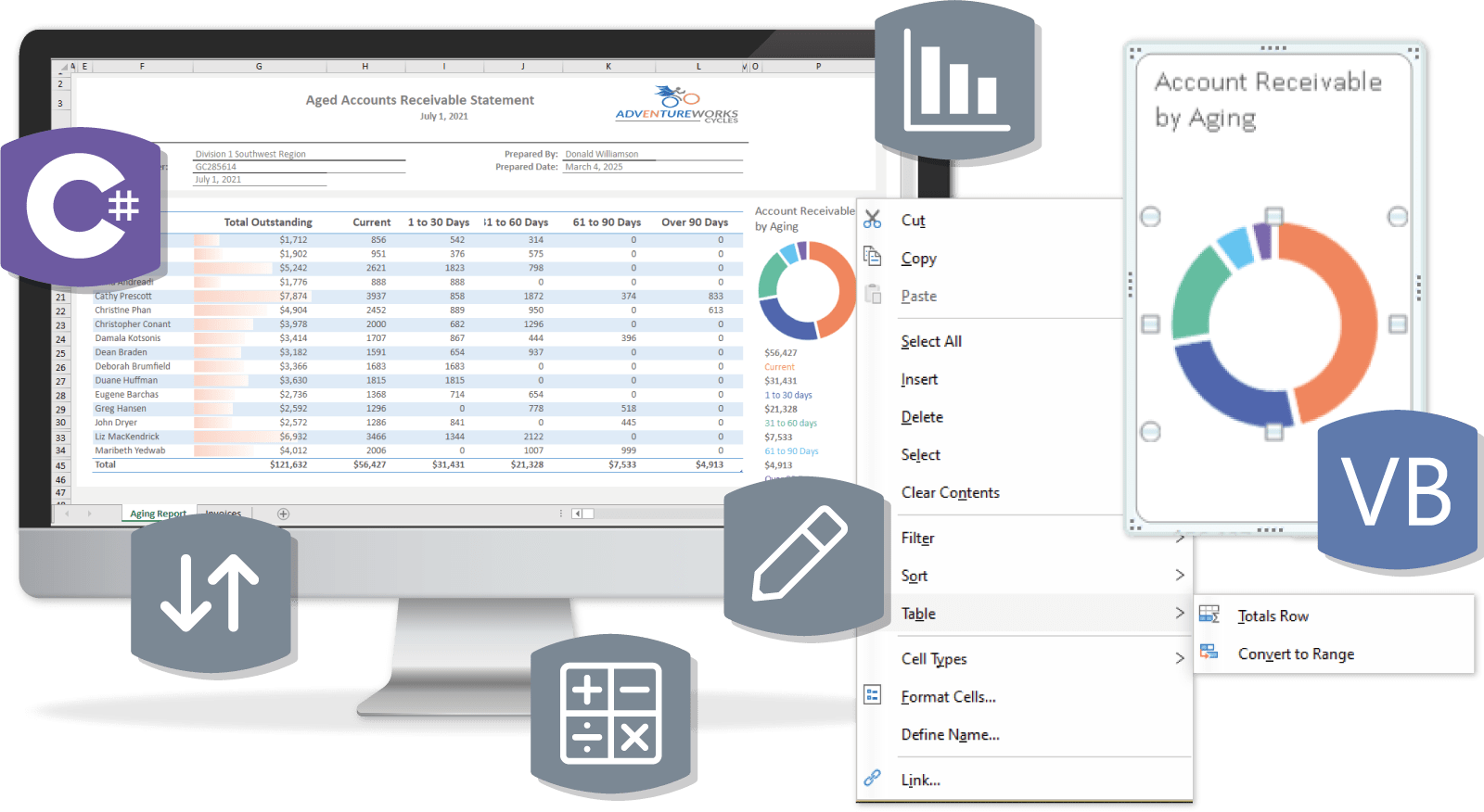
Spread.NET provides a powerful .NET spreadsheet solution, delivering an familiar-experience including worksheets, rows and column headers, Pivot Tables, a status bar, and more. It includes comprehensive features to provide a complete Microsoft Excel-like experience - even for your Excel power users - including charts, tables, shapes, sparklines, conditional formatting, formulas and filtering and so much more. With support for seamless Excel import and export, you can easily integrate your existing spreadsheet data and create and share reports without any dependency on Microsoft Excel.
High-Performance Spreadsheet Engine
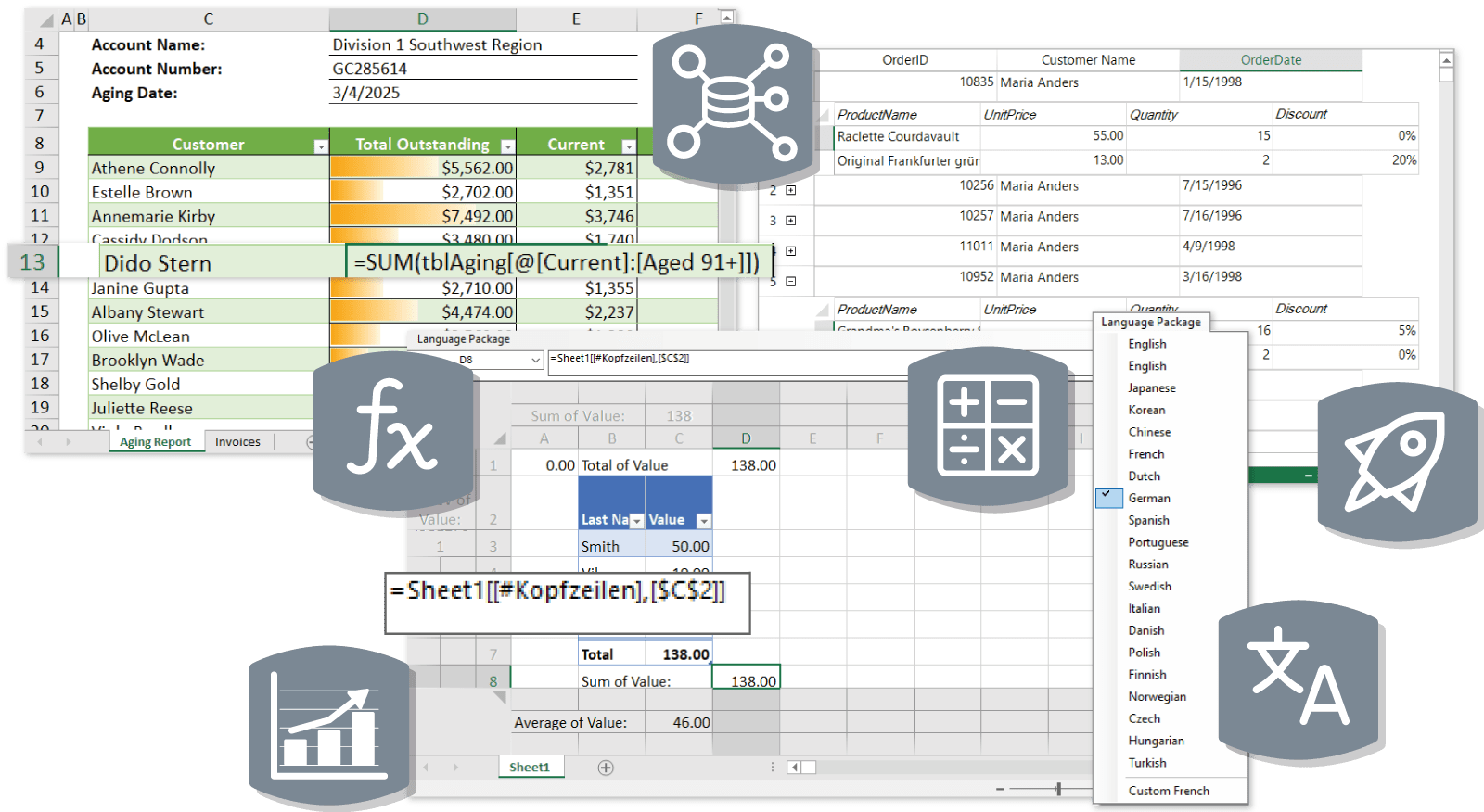
This .NET spreadsheet component is built for high-performance, capable of handling large and complex spreadsheet files with ease. Its powerful calculation engine supports 500+ functions across 19 languages, including statistical and financial functions, dynamic arrays, and custom user-defined functions. Optimized for big data, complex calculations, and advanced Excel models, Spread.NET delivers the speed and efficiency needed for demanding spreadsheet applications.

Complete Document Control
Spread.NET delivers complete document control, empowering developers to build, customize, and manage sophisticated spreadsheets within .NET applications. It supports deep customization of sheets, rows, columns, and cells, along with advanced data binding, interactive formulas, and seamless integration with charts and ribbon controls. Developers can fine-tune user interaction, apply custom drawing, and leverage touch support for modern applications. With robust file operations, printing capabilities, and extensive API access, Spread.NET ensures precise control over every aspect of spreadsheet development.
Code-Free Spreadsheet Designer
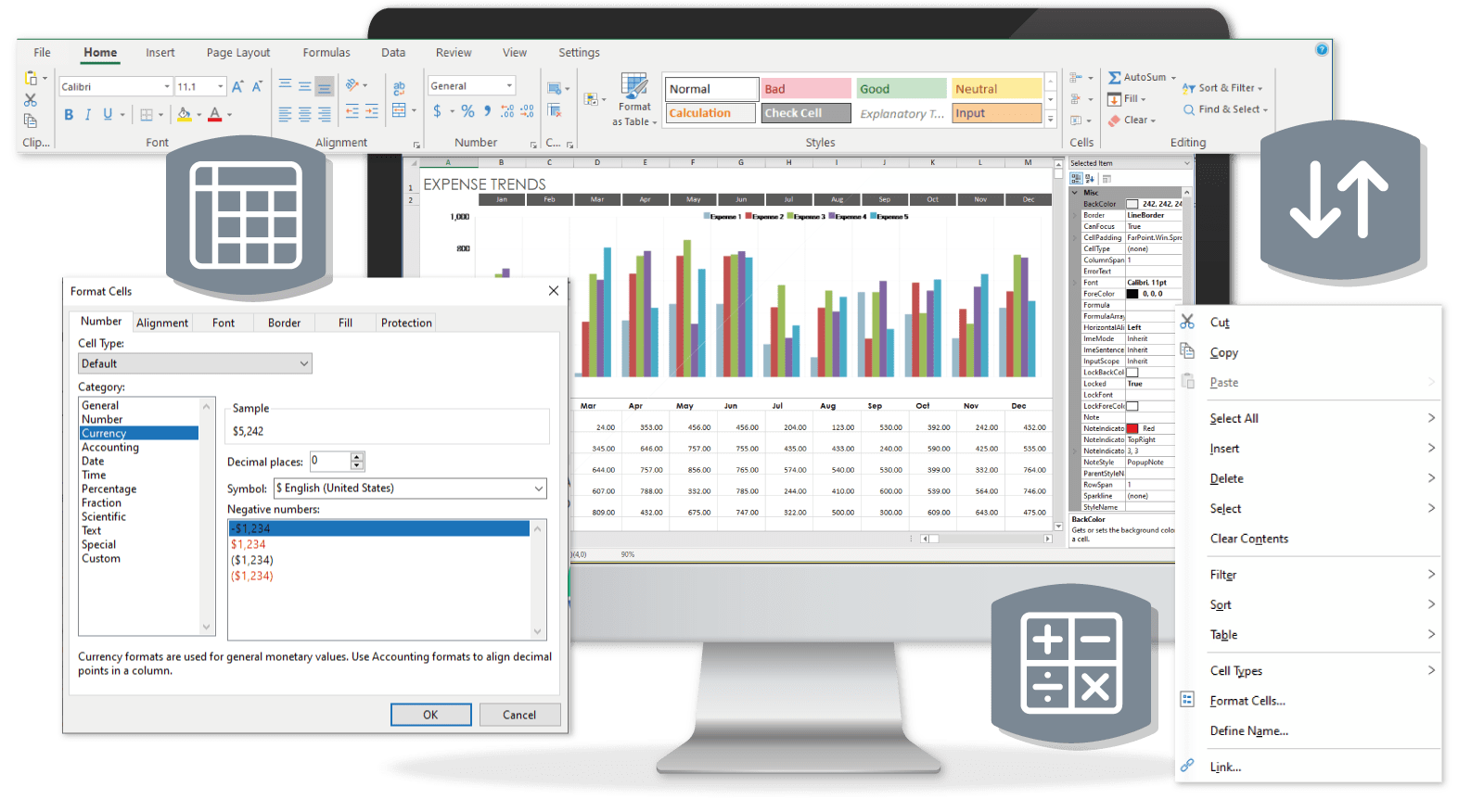
Spread Designer is a powerful tool for quickly designing and customizing .NET spreadsheets in a dedicated WYSIWYG graphical interface. Allowing users to easily set properties, add data, preview changes, and save designs for reuse or sharing—all without coding. With the built-in editors, familiar dialogs, and extensive customization options, it streamlines spreadsheet development.
Build Your Own .NET WinForms Spreadsheet
| Quick Start Guide | |
|---|---|
1. Install the latest Spread.NET release in the .NET application. | Download Release Trial NuGet: dotnet add package GrapeCity.Spread.WinForms |
2. Drag, drop, and draw the FpSpread component onto the form. | 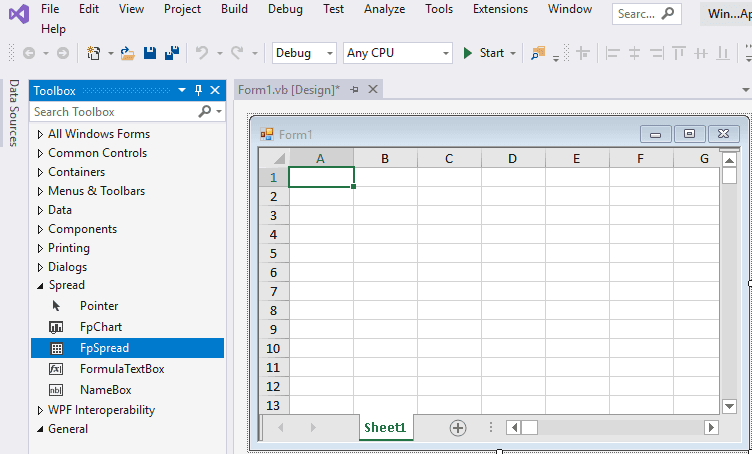 |
3. You can also double click the form to programmatically configure and add data to the .NET workbook. | fpSpread1.Sheets[0].SetValue(0, 3, "Hello World!"); |
Learn more with our complete Quick Start guide for Spread.NET for WinForms.
Easy Licensing & Distribution
Access your Spread.NET key(s) through your MESCIUS account after purchase.
Licensing FAQs
Licensed per developer and build machine for WinForms, ASP.NET, and WPF. Includes 1-Year Annual Maintenance & Support.
Need a Trial Extension?
Spread.NET includes a 30-day free trial upon installation. If you need more time to evaluate after your trial expires, contact our sales team for a Trial Extension key.
Have Questions? We're Here to Help
Email eu.sales@mescius.com to schedule a call with our product specialists or request a personalized demo through support to discuss your project needs.

What's New in Spread.NET v19
Spread.NET v19 is available! This release offers several enhancements to features of the WinForms and WPF spreadsheet controls, including:
New Pivot Table Engine for fast, interactive data analysis
Formula Auto Indent for clearer, multi-line formula editing
New methods to pin rows or columns while scrolling
New Calc Engine functions including TRIMRANGE and REGEX operations
Enhanced chart engine with data tables, label orientation, and smooth line styles
New Pivot Table Engine with interactive grouping and aggregation
Enhanced chart text orientation for labels and legends
Cell overflow control for cleaner spreadsheet layouts
Updated Calc Engine with new regex-based functions
Featured Blogs, Videos, and Other Resources


Award-Winning Products and First-Class Support

"I have been using a various form of Spread back to the COM days. Spread is the most reliable spreadsheet that retrieves and stores data, whether interacting with a database or simply an Excel file. Try it out, and you will not go back to any other control"
TRUSTED CUSTOMER
"Great support through evaluation process, Spread is my favorite development add-in, adds great, high value capabilities to applications!"
TRUSTED CUSTOMER
"Excellent Products. I have been using their products for around 15 years. Always there to help."
TRUSTED CUSTOMER